Proximity Voice Chat
Java Players can use the Simple Voice Chat mod to talk to other players in-game.
Here are the the links for the mod for each loader of Minecraft:
- For Fabric, install install this version.
- For Forge, install install this version.
- For Quilt, install install this version.
The mod is only available for Java, so Bedrock players can't use it.
How to use
Voice Chat GUI
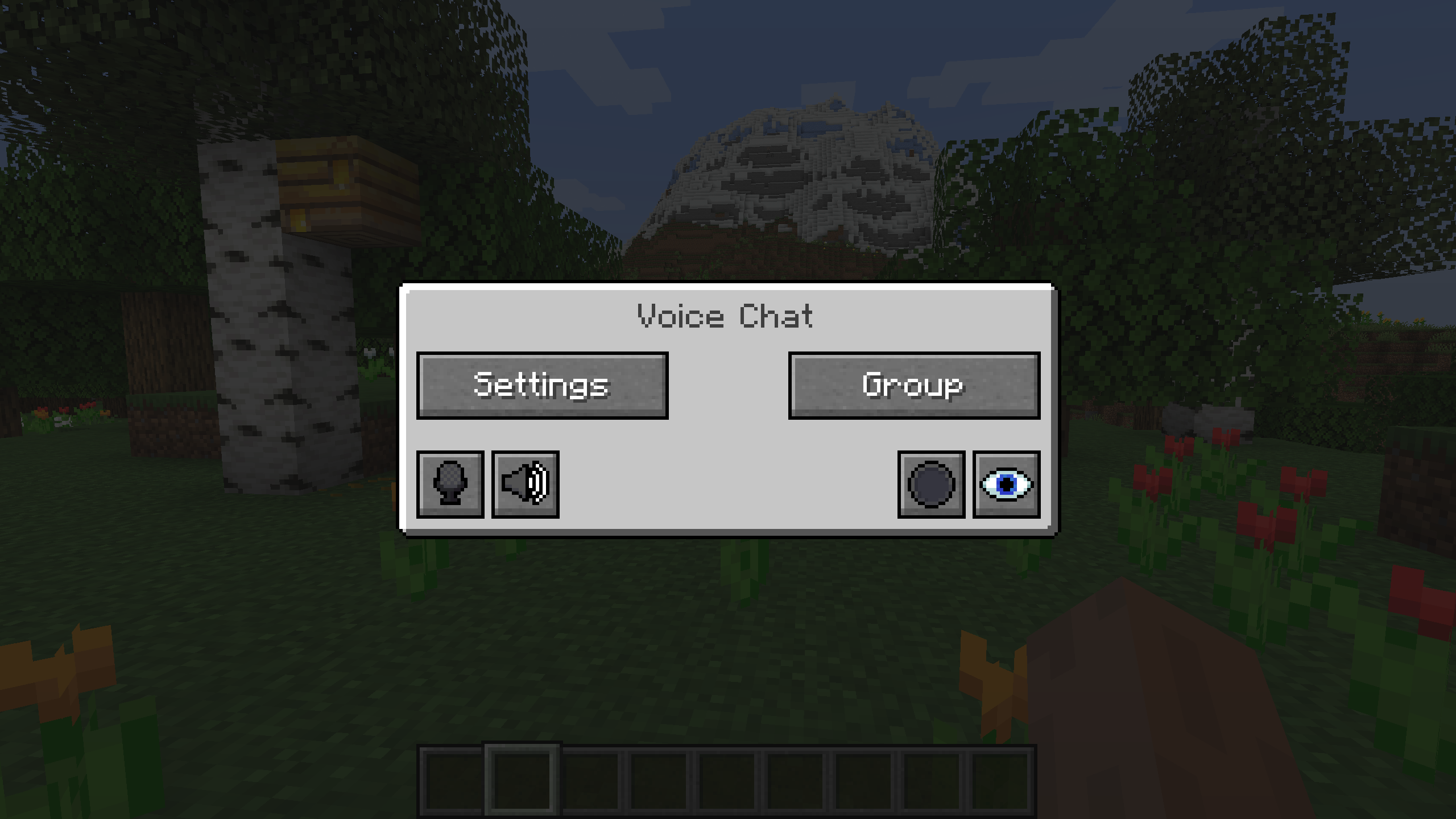
You can open the voice chat GUI by pressing the V key. This allows you to open the settings, group chats, mute yourself, disable the voice chat, start/stop a recording and hide all icons.
Voice Chat Settings
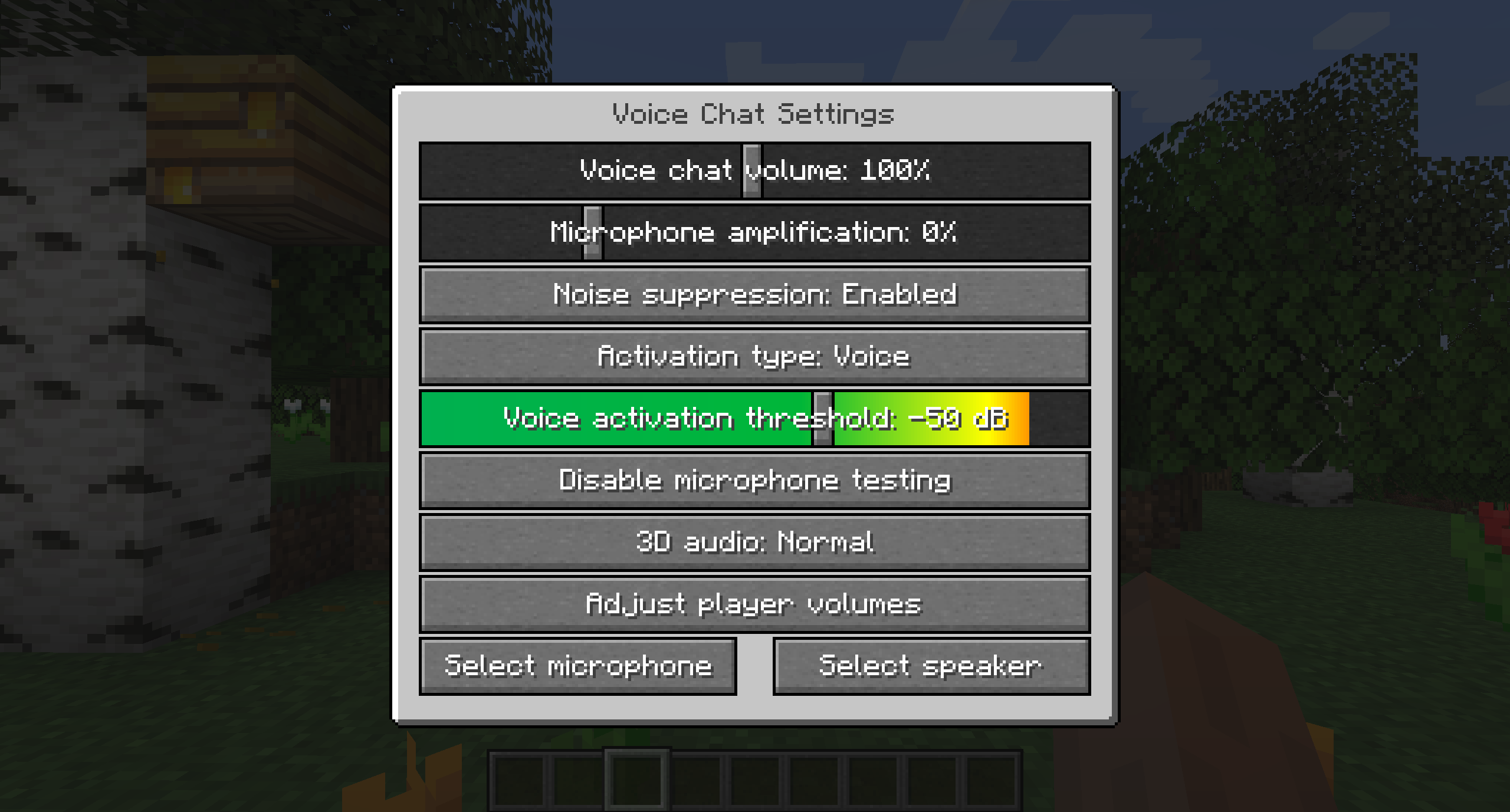
You can access the voice chat GUI by pressing the V key and pressing the settings button.
This menu offers the ability to change the general voice chat volume and your microphone amplification. In addition, there is the possibility to specify the recording and playback device.
By clicking the 'Enable microphone testing' button, you can hear your own voice and adjust the activation level of the voice activation.
Key Bindings
| Name | Default Key | Description |
|---|---|---|
| Voice Chat GUI | V | Opens the Voice Chat GUI. |
| Voice Chat Settings | Not bound by default | Opens the Voice Chat Settings |
| Group Chats | G | Opens the Group Chat GUI. |
| Push To Talk | CAPS LOCK | The push to talk key (Only when using activation type PTT). |
| Mute Microphone | M | The mute button (Only when using voice activation type Voice). |
| Disable Voice Chat | N | This button disables the voice chat. Other people can't hear you and you can't hear them. |
| Hide Voice Chat Icons | H | This button hides all icons related to the voice chat. |
| Toggle Recording | Not bound by default | Toggles voice chat audio recording. |
| Whisper | Not bound by default | Hold down to whisper. |
You can change every key binding in the Minecraft key binding settings.
Icons
| Icon | Description |
|---|---|
 | Indicates that you are talking. |
 | Indicates that you are whispering. |
 | Indicates that the player is talking. |
 | Indicates that the player is whispering. |
 | Indicates that the microphone is muted. |
 | Indicates that the voice chat is disabled. |
 | Indicates that the player isn't connected to voice chat or hasn't installed the mod. |
Group Chats
Group chats allow you to talk to players that are not in your vicinity, like having a Discord Call. To open the group chat interface, either press the group button in the voice chat GUI or just press the G key.
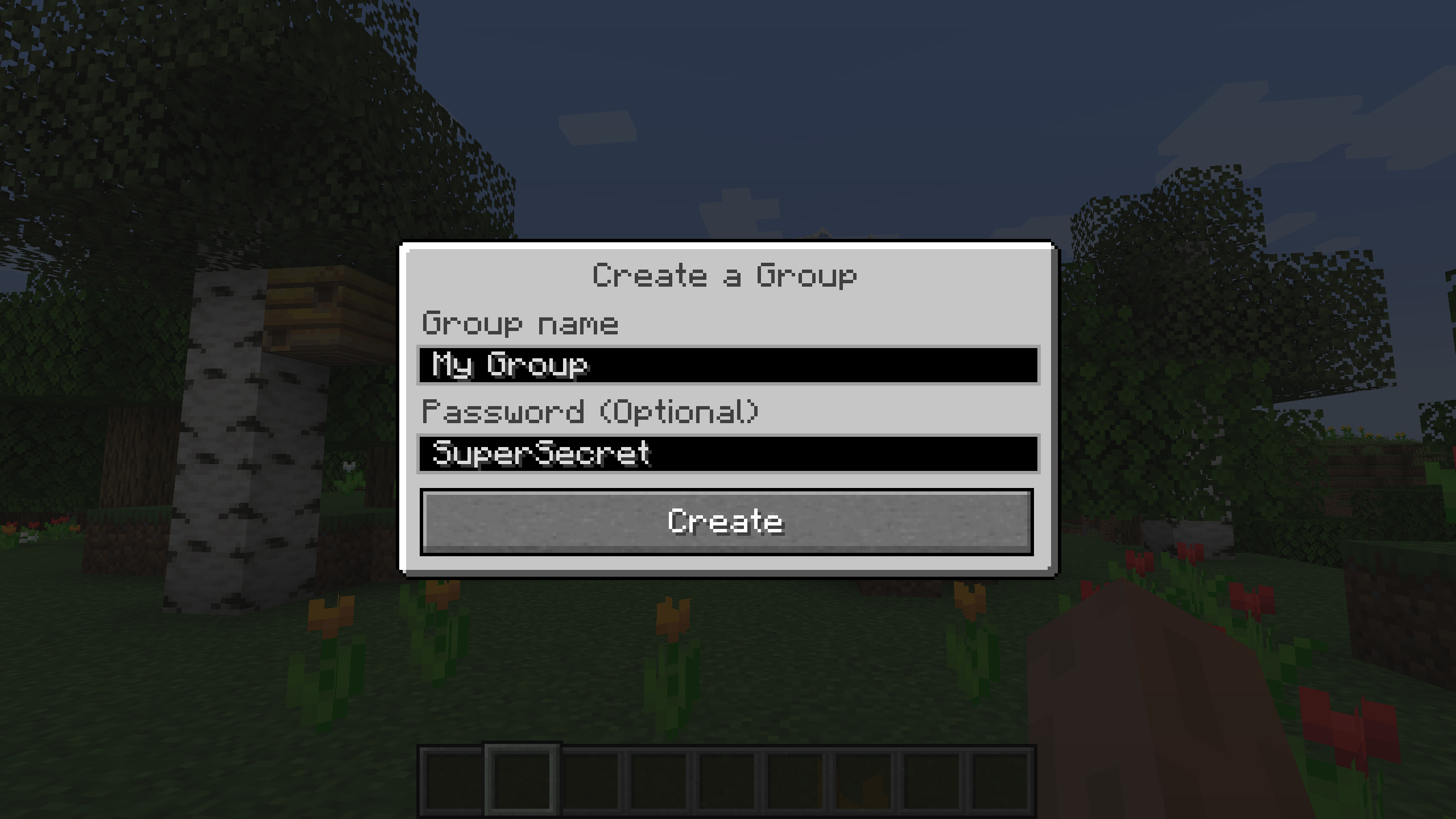
To create a new group, just type a name in the text field and press the button next to it.
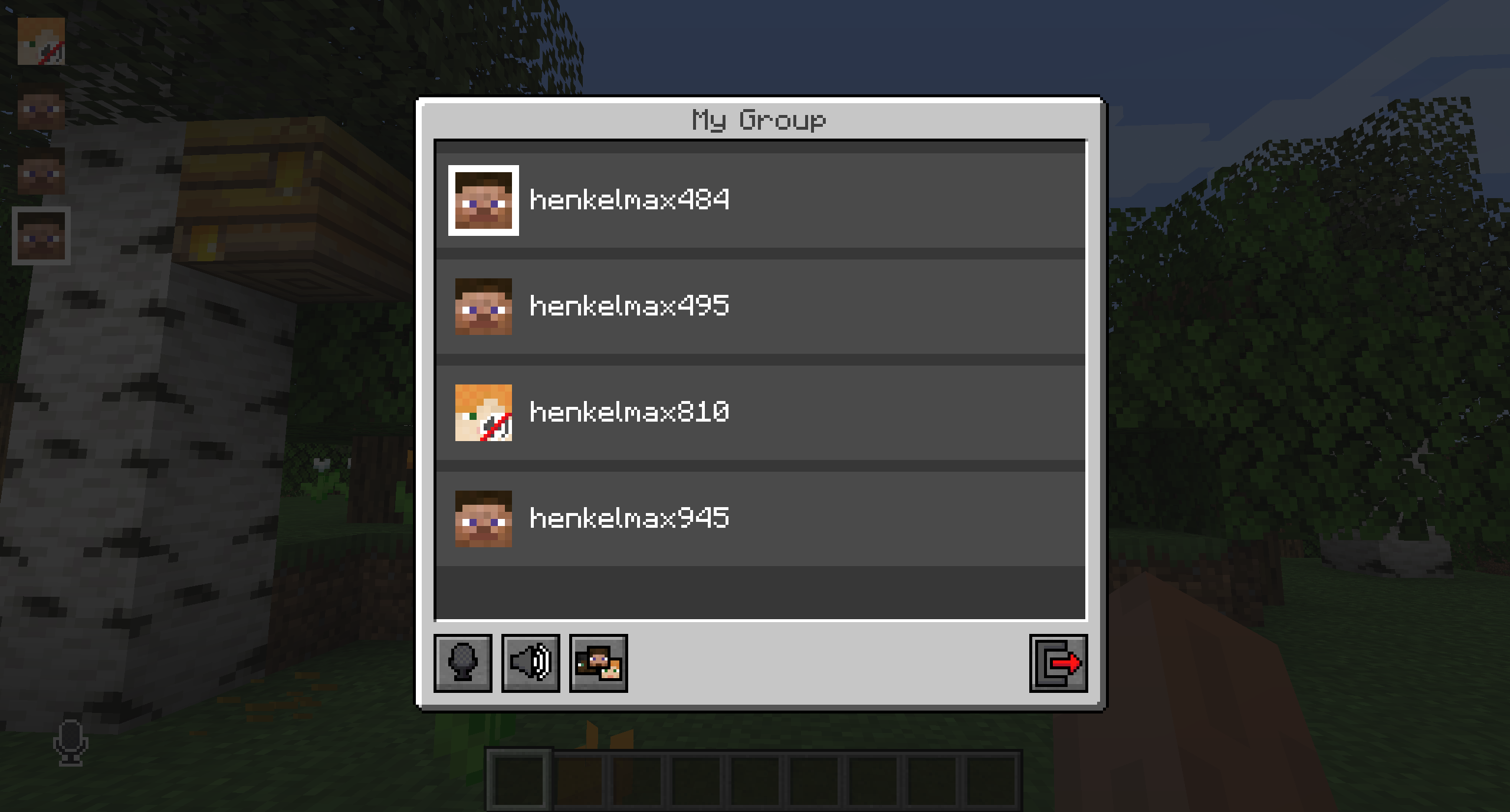
Creating or joining a group will bring you into the group chat interface. You will also see the heads of the group members in the top left corner of your screen. Talking players will be outlined. You can disable these icons by pressing the third button from the left.
Players that are not in a group will see a group icon next to your head, indicating that they can't talk to you.
You can invite players to your group chat by entering the command /voicechat invite <playername>.